
MOV is common for camera clips and Mac screen recordings. Choose QuickTime Player for a straightforward local viewing workflow when another editor has taken over double-clicks. Playback still depends on the codecs used in the MOV container.
Method 1: Use Finder
- In Finder, select a sample file such as recording.mov.
- Press Command–I, or choose File → Get Info.
- Expand Open with and choose QuickTime Player. If it is missing, choose Other and locate the installed app.
- Click Change All and confirm the macOS prompt.
- Double-click another file of the same type to check the new default.
Method 2: Manage associations with Pahkui
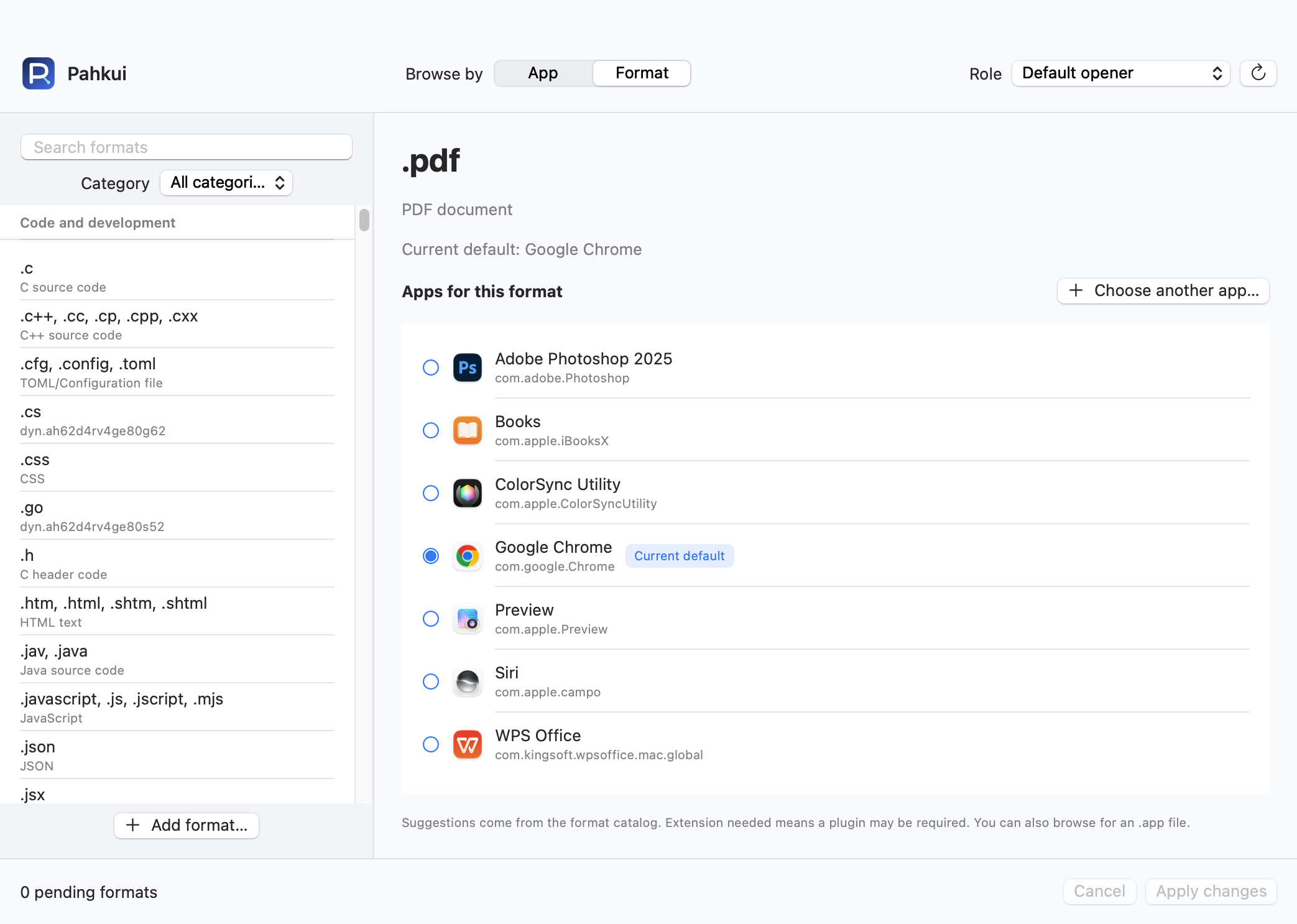
Pahkui lets you browse by app or by format. When setting up an editor for several file types, you can inspect the current defaults and review pending changes in one window. Requires macOS 14 or later.
- Open Pahkui, switch to Format, and search for the extension you need from .mov.
- Select QuickTime Player. Use Choose another app if it is not listed.
- Review the pending association, click Apply changes, and confirm the new app in the macOS dialog.
The formats in this guide require Pahkui Pro, a one-time purchase for lifetime use. The manual Finder method does not require a purchase. See pricing
If the default app does not change
- If QuickTime reports incompatible media, changing the Finder default again will not add codec support.
- Use a local recording for testing; cloud files may need to download before they can be opened.
- If QuickTime Player is missing, confirm it is installed and can open the sample directly, then locate it with Other. If an extension is absent from the catalog, add the format in Pahkui. Changing an association does not add format support to the target app.
Common questions
Does this change the recording format?
No. It changes the app that opens existing MOV files, not the recording or export settings.
How do I restore the previous app for .mov?
Choose the previous app again in Finder or Pahkui and confirm the change. This updates the type association without deleting files. Use the Open With context menu for a one-time exception.