
Rust source files can open in Zed while Cargo and rust-analyzer remain responsible for building and language tooling. An app association is helpful for quick source inspection outside an existing project window.
Method 1: Use Finder
- In Finder, select a sample file such as main.rs.
- Press Command–I, or choose File → Get Info.
- Expand Open with and choose Zed. If it is missing, choose Other and locate the installed app.
- Click Change All and confirm the macOS prompt.
- Double-click another file of the same type to check the new default.
Method 2: Manage associations with Pahkui
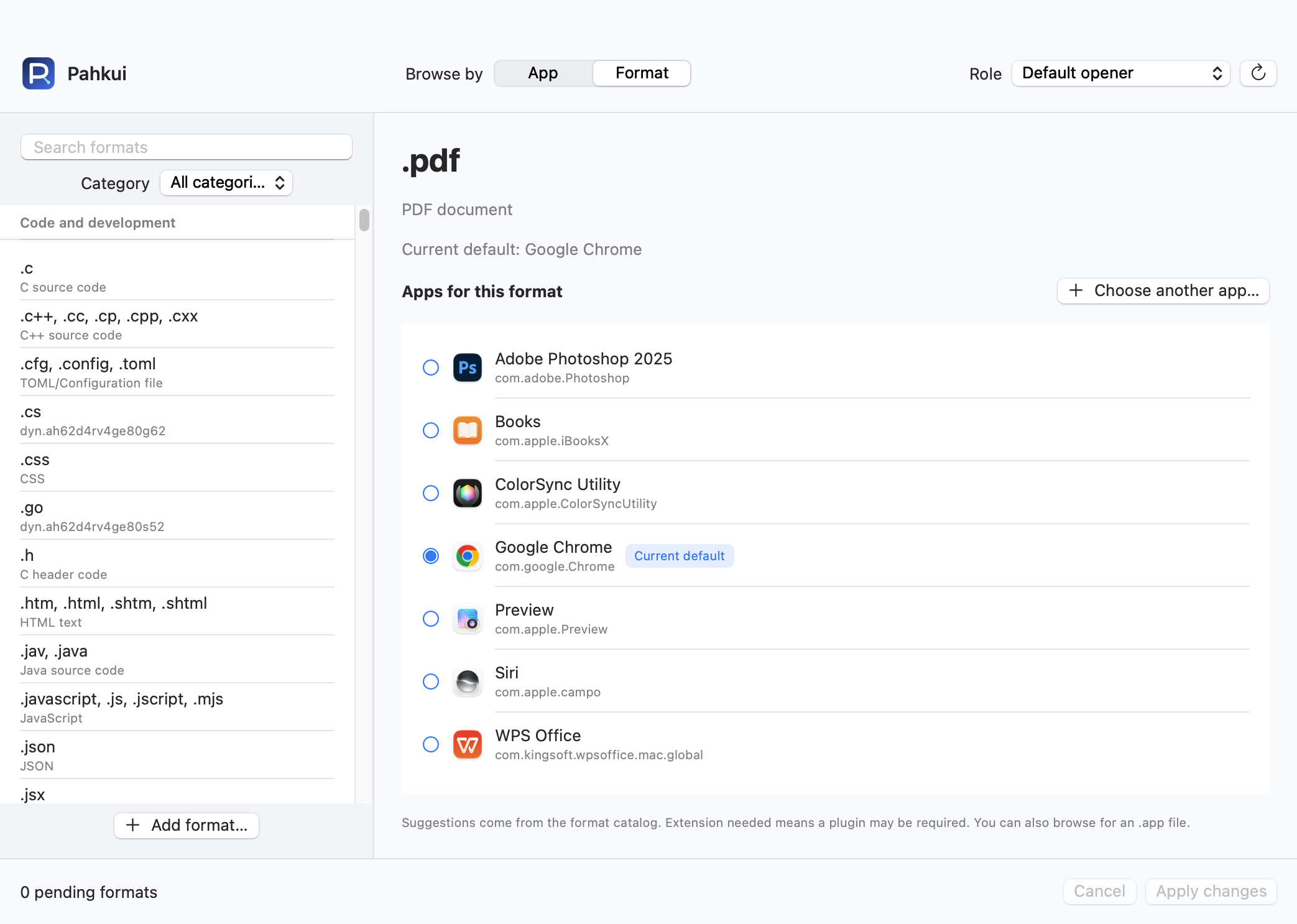
Pahkui lets you browse by app or by format. When setting up an editor for several file types, you can inspect the current defaults and review pending changes in one window. Requires macOS 14 or later.
- Open Pahkui, switch to Format, and search for the extension you need from .rs.
- Select Zed. Use Choose another app if it is not listed.
- Review the pending association, click Apply changes, and confirm the new app in the macOS dialog.
The formats in this guide require Pahkui Pro, a one-time purchase for lifetime use. The manual Finder method does not require a purchase. See pricing
If the default app does not change
- A missing compiler or language server is a Rust toolchain issue, not a Finder default-app issue.
- Use .rs source as the sample, not a compiled executable or the Cargo.toml project manifest.
- If Zed is missing, confirm it is installed and can open the sample directly, then locate it with Other. If an extension is absent from the catalog, add the format in Pahkui. Changing an association does not add format support to the target app.
Common questions
Does this configure Cargo or rust-analyzer?
No. It chooses the app for Rust source files. Install and configure the Rust toolchain separately.
How do I restore the previous app for .rs?
Choose the previous app again in Finder or Pahkui and confirm the change. This updates the type association without deleting files. Use the Open With context menu for a one-time exception.