
Configuration files such as package.json are easier to inspect in an editor with JSON support. The Finder default determines which app launches; JSON validation and formatting happen inside the editor. Setting a default does not rewrite your configuration files.
Method 1: Use Finder
- In Finder, select a sample file such as package.json.
- Press Command–I, or choose File → Get Info.
- Expand Open with and choose Visual Studio Code. If it is missing, choose Other and locate the installed app.
- Click Change All and confirm the macOS prompt.
- Double-click another file of the same type to check the new default.
Method 2: Manage associations with Pahkui
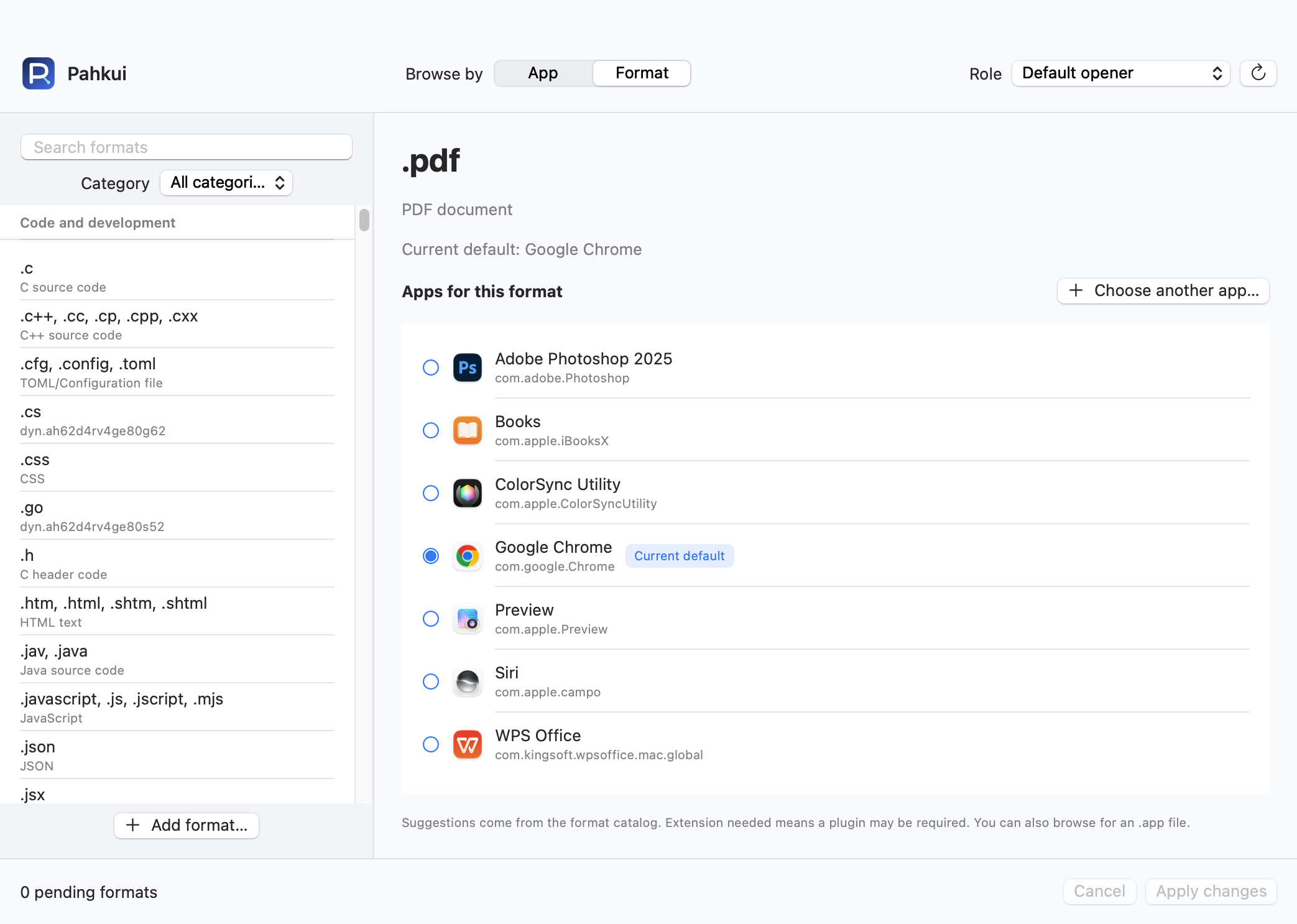
Pahkui lets you browse by app or by format. When setting up an editor for several file types, you can inspect the current defaults and review pending changes in one window. Requires macOS 14 or later.
- Open Pahkui, switch to Format, and search for the extension you need from .json.
- Select Visual Studio Code. Use Choose another app if it is not listed.
- Review the pending association, click Apply changes, and confirm the new app in the macOS dialog.
The formats in this guide require Pahkui Pro, a one-time purchase for lifetime use. The manual Finder method does not require a purchase. See pricing
If the default app does not change
- If the file is really named package.json.txt, changing the .json default will not affect it. Check Name & Extension in Get Info before changing the association.
- A .jsonc file is a separate extension. Add it separately if you also want JSON with comments to open in the same editor.
- If Finder still opens another app, check that you confirmed Change All and any macOS confirmation dialog, then test a different .json file.
Common questions
Does changing the default app modify my JSON?
No. It changes which app macOS uses to open the file. The file contents stay the same until you edit and save them.
Can I use another JSON editor?
Yes. Choose an installed app that can read JSON in Finder or Pahkui instead of Visual Studio Code.